Use quick connection tests, VPN settings, and a careful comparison to find out whether your VPN is disrupting internet access.
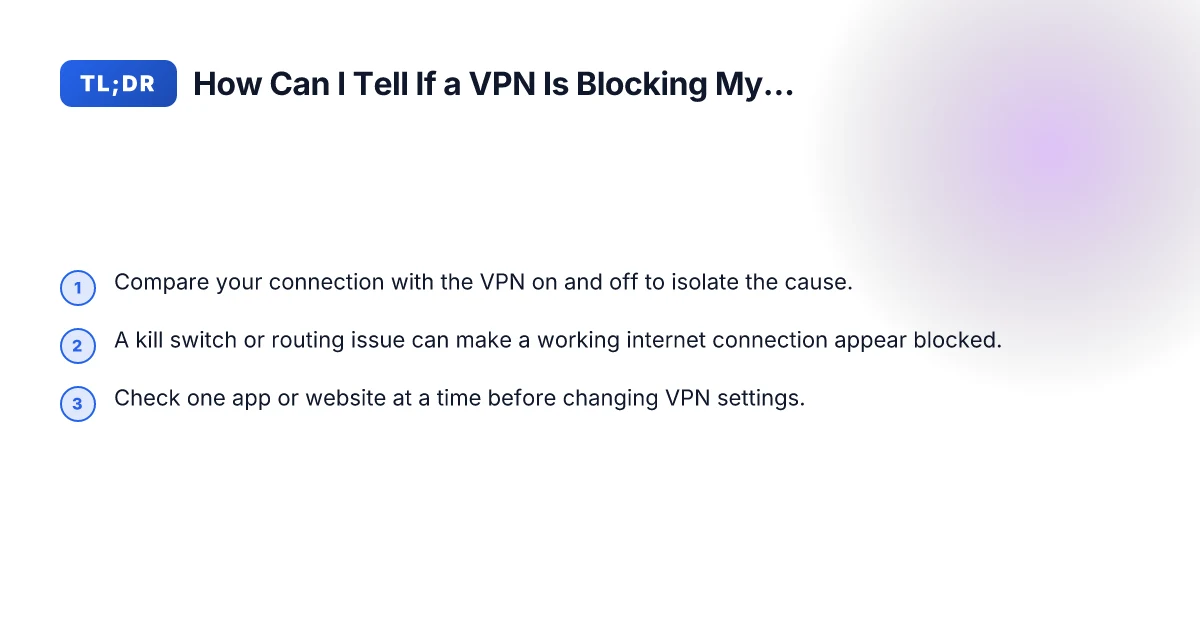
If you’re asking, “How can I tell if a VPN is blocking my internet?”, compare your connection with the VPN connected and disconnected. If the internet works normally without the VPN but stops or becomes unreliable as soon as you connect, the VPN or one of its settings is a likely cause. If it fails in both cases, the problem may be your Wi-Fi, device, router, or internet provider instead.
Try the checks below in order. They can help you distinguish a full connection block from a slow connection, a website restriction, or a VPN that has simply disconnected.
| VPN | Obfuscation | From / month | Plan | Free plan | Refund | Alipay | UnionPay | Crypto | Website opens in China | Trustpilot | |
|---|---|---|---|---|---|---|---|---|---|---|---|
 ZoogVPN | Turn on manually Shadow | $2.49/mo | 27 months: $59.99 | Yes | 7 days | ✓ | ✓ | ✓ | ✓ | Official site blocked; our special link opens (4.4 s) | 4.2/5 (195 reviews) |
 NordVPN | Turn on manually Obfuscated Servers / NordWhisper | $3.49/mo | 27 months: $94.23 | No | 30 days | ? | ✗ | ✓ | ✓ | ✗ Blocked | 4.2/5 (51,628 reviews) |
 ExpressVPN | ✓ On by default all servers | $3.00/mo | 28 months: $84 | No | 30 days | ✗ | ✗ | ✓ | ✗ | ✗ Blocked | 4.4/5 (29,706 reviews) |
 Surfshark | ✓ On by default Camouflage, with OpenVPN | See site | See site | No | 30 days | ✗ | ✗ | ✗ | ✓ | ✗ Blocked | 4.3/5 (31,823 reviews) |
 Proton VPN | Turn on manually Stealth, free plan too | $2.99/mo | 12 months: $35.88 | Yes | 30 days | ✗ | ✗ | ✗ | ✓ | ✗ Blocked | 2.1/5 (1,040 reviews) |
 Astrill VPN | Turn on manually StealthVPN / OpenWeb | $12.50/mo | 24 months: $300 | No | See site | ✗ | ✗ | ✗ | ✓ | ✗ Blocked | 1.3/5 (110 reviews) |
 Private Internet Access | Turn on manually Shadowsocks, OpenVPN only | $2.03/mo | 40 months: $81.2 | No | 30 days | ✗ | ✗ | ✗ | ✗ | ✗ Blocked | 4.2/5 (11,033 reviews) |
 CyberGhost | Turn on manually selected servers | $2.19/mo | 28 months: $61.32 | No | 45 days | ✗ | ✗ | ✗ | ✓ | ✗ Blocked | 4.0/5 (24,178 reviews) |
 PureVPN | Turn on manually switch to OpenVPN | $1.69/mo | 60 months: $101.55 | No | 31 days | ? | ? | ✗ | ✓ | ✗ Blocked | 4.4/5 (17,994 reviews) |
 AdGuard VPN | ✓ On by default TrustTunnel | $2.99/mo | 24 months: $71.76 | Yes | 30 days | ✓ | ✗ | ✓ | ✓ | Official site blocked; our special link opens (3.7 s) | 4.3/5 (290 reviews) |
 Mullvad | Turn on manually QUIC / Shadowsocks / LWO | $5.61/mo | €5/mo | No | 14 days | ✗ | ✗ | ✗ | ✓ | ✗ Blocked | 3.2/5 (192 reviews) |
 Windscribe | Turn on manually Stealth / WStunnel | $5.75/mo | 12 months: $69 | Yes | See site | ✗ | ✗ | ✗ | ✓ | ✗ Blocked | 4.7/5 (13,355 reviews) |
 StrongVPN | Turn on manually Scramble, OpenVPN TCP | See site | See site | No | 30 days | ✓ | ✗ | ✗ | ✗ | ✗ Blocked | 4.4/5 (2,695 reviews) |
 LightXtreme 闪连 | Not listed | $7.08/mo | 12 months: $84.99 | Yes | 30 days | ✓ | ✓ | ✓ | ✓ | ✓ Yes (3.5 s) | No page |
Prices checked 2026-11-10 on each vendor's pricing page (cheapest long plan, USD). Check the vendor's checkout for the final price.
Obfuscation checked 2026-11-14 on each vendor's site and help center: "on by default" = nothing to set; "turn on manually" = switch protocol or mode in settings; "not listed" = the vendor describes no obfuscation.
Payment methods checked 2026-11-10 on each vendor's payment pages: all 14 take cards and PayPal; ✗ = not listed, ? = the vendor's own pages disagree.
China access: whether the official website opens from mainland China networks (tests the website only, not the VPN connection). Last checked 2026-11-18 01:02 Beijing time.
Trustpilot score and review count checked 2026-11-10.
Compare the same connection with the VPN on and off
| Check | VPN on | VPN off | What it suggests |
|---|---|---|---|
| Open a familiar website | Loads / fails | Loads / fails | Whether the VPN changes access |
| Search for a new page | Works / fails | Works / fails | Whether the issue affects browsing |
| Try another app | Works / fails | Works / fails | Whether the issue is app-specific |
| Check another device | Works / fails | Works / fails | Whether the issue is device-specific |
| Connect to another network | Works / fails | Works / fails | Whether the network may be involved |
| Change VPN server | Works / fails | Not applicable | Whether one server may be involved |
| Reconnect to the VPN | Works / fails | Not applicable | Whether reconnecting helps |
Compiled November 2026; check the provider's site for current details.
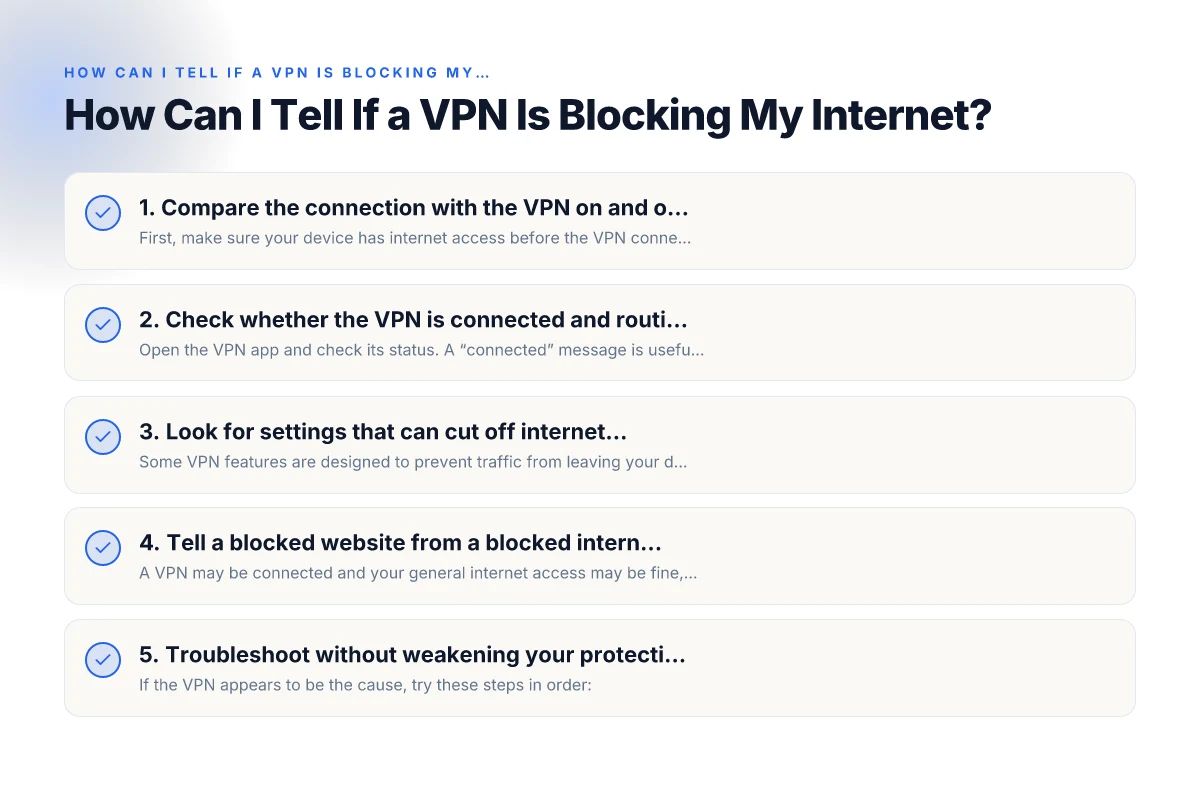
1. Compare the connection with the VPN on and off
First, make sure your device has internet access before the VPN connects. Open a couple of familiar websites or apps, then connect to the VPN and try them again. If they stop loading only after connection, disconnect the VPN and repeat the test.
| What you observe | What it may indicate |
|---|---|
| Nothing works with the VPN on, but it works when the VPN is off | A VPN setting, server, or connection issue may be interfering |
| One website fails, but other sites work | The site may be unavailable, restricting VPN traffic, or having a separate issue |
| The internet fails with the VPN both on and off | Look first at Wi-Fi, mobile data, the device, or the internet provider |
| Pages load slowly, but eventually open | The connection may be slow rather than blocked |
For a fair comparison, use the same device and network and test more than one site. Avoid concluding that the VPN blocks the internet based on a single page that will not load.
2. Check whether the VPN is connected and routing traffic
Open the VPN app and check its status. A “connected” message is useful, but it does not guarantee that every app or website is reachable. The VPN may have lost its connection, be trying to reconnect, or have a problem with the selected server.
You can also check the VPN or proxy settings on your device. On a PC, review the Wi-Fi or network settings for a VPN or proxy connection. On a Mac, check the VPN status in the menu bar or network settings. On phones, look in the device’s network or VPN settings. The exact menu varies by operating system and version. NordVPN windows(2026)
If you do not recognize a VPN or proxy entry, check with whoever manages the device or network before removing it. A work or school device may use a required VPN configuration.
3. Look for settings that can cut off internet access
Some VPN features are designed to prevent traffic from leaving your device outside the encrypted connection. A kill switch, for example, may block internet access if the VPN disconnects unexpectedly. This can look like the VPN is blocking everything, even though the feature is working as intended to prevent an unprotected connection.
Check the VPN app for settings such as:
- Kill switch: May block internet traffic when the VPN connection drops.
- Always-on VPN: May keep the device from connecting normally if the VPN cannot start.
- Split tunneling: May send some apps through the VPN and others through your regular connection.
- Custom DNS or filtering: May affect how websites resolve or whether particular content loads.
- Proxy settings: May direct traffic through a server that is unavailable or misconfigured.
If a setting seems relevant, change only one thing at a time. Then reconnect and test again. If the device belongs to your employer or school, do not alter managed settings without permission. microsoft edge secure network VPN reviews(2026)
Identify what may be blocking access
| Symptom | VPN connection | Website or app | Likely area to check |
|---|---|---|---|
| Nothing loads with VPN on; it works off | Connected or connecting | Multiple fail | VPN server or settings |
| VPN says disconnected; internet works | Disconnected | Multiple work | VPN connection |
| Only one website fails | Connected | One site fails | Website or its access rules |
| One app fails; websites work | Connected | One app fails | App settings or compatibility |
| VPN connects, then internet stops | Connected | Multiple fail | Kill switch or VPN routing |
| Internet returns after VPN disconnects | Disconnected | Multiple work | VPN configuration |
| Same failure with VPN on and off | Any | Multiple fail | Network, device, or service |
Compiled November 2026; check the provider's site for current details.
4. Tell a blocked website from a blocked internet connection
A VPN may be connected and your general internet access may be fine, while one website refuses to load. Some sites restrict traffic from VPN or proxy addresses. Others may show a security check, an access-denied message, or repeated login prompts. These signs point to a site-specific issue, not necessarily a total internet block.
Try a few unrelated websites and apps. If they work, the connection is not completely blocked. If the problem affects only one service, check whether that service is having an outage or whether it offers guidance for VPN users. You can also disconnect the VPN briefly and see whether that specific site loads, then reconnect afterward if you need the VPN. nord VPN in china(2026)
A website’s error message can offer clues, but it may not identify the cause with certainty. A page that times out could reflect a site problem, a VPN server issue, or a network interruption.
5. Troubleshoot without weakening your protection
If the VPN appears to be the cause, try these steps in order:
- Disconnect and reconnect to the VPN.
- Choose another server or location in the VPN app.
- Restart the app, then restart the device if needed.
- Check for VPN app or operating-system updates.
- Review the app’s connection, kill switch, DNS, and proxy settings.
- Contact the VPN provider or your network administrator if the issue continues.
You can briefly disconnect the VPN as a diagnostic test, but remember that your traffic will no longer pass through the VPN while it is off. Avoid disabling security features permanently just to restore access. If you are on a public or otherwise untrusted network, consider waiting until you have confirmed a safe alternative before browsing without the VPN.
Troubleshoot while keeping protection in place does microsoft edge have VPN(2026)
| Step | What to check or try | If access returns | If it does not |
|---|---|---|---|
| Confirm VPN status | Check the app’s connection indicator | Continue using the VPN | Reconnect or check the server |
| Try another server | Select a different VPN server | Keep the working server | Check VPN settings |
| Review kill switch | Check whether it blocks traffic when VPN disconnects | Leave protection enabled | Check VPN connection stability |
| Review split tunneling | Check whether the affected app is included or excluded | Keep the intended routing | Restore the intended app setting |
| Test another website or app | Compare more than one service | Treat it as a site- or app-specific issue | Continue checking the connection |
| Test another network | Compare on a trusted network | Investigate the original network | Check the device or VPN |
| Avoid disabling safeguards | Keep the VPN and protective settings on | Maintain protection | Contact VPN support or your network administrator |
Compiled November 2026; check the provider's site for current details.
Recommendation
Start by testing the same sites with the VPN on and off. If access fails only while connected, check the VPN’s status, try another server, and review settings such as the kill switch. If only one site fails, treat it as a site-specific problem. If all access fails even with the VPN disconnected, troubleshoot your ordinary internet connection first.